
Organization
An organization is the account everything in Selltics belongs to: its connections, profiles and groups, its members and roles, its plan and its dollar balance. All of it is managed under Users & permissions in the management dashboard, which every plan can open.
Personal and team organizations
- Your personal organization is created when you register, with you as its owner and a one-time $5 signup credit. It is bound to you: it cannot be deleted, handed over or left, and it cannot take invitations — no second person can ever join it.
- A team organization is what you invite colleagues into. Create one from the organization switcher at the top right, New organisation; you can own up to three. It starts on the Single plan with a zero balance and no signup credit, and the switcher moves you into it at once.
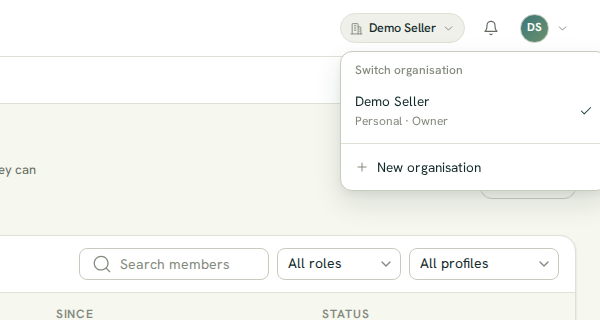
Everything you see and do acts in the organization chosen in the switcher; switching reloads the screens for the other organization.
Not in the dashboard yet
The dashboard has no screen yet to rename, delete or leave an organization, or to hand its ownership to someone else.
Members
Users & permissions → Overview lists the members with their role, which profiles they can see and since when, together with pending invitations. Below the table, a summary shows which role holds the main permissions:
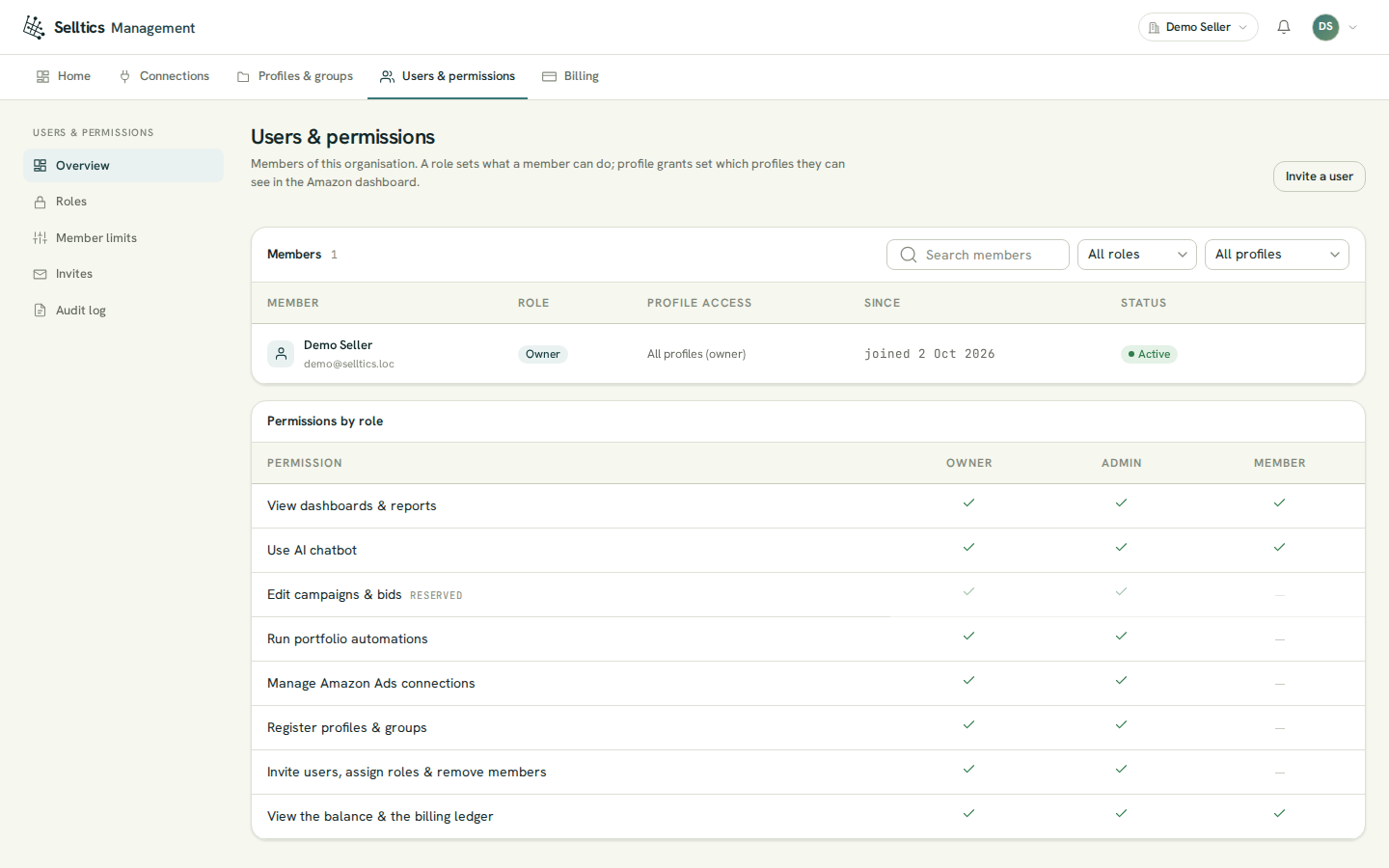
Search, the role filter and the profile filter combine; a member with access to all profiles stays visible under every profile.
Row actions
With the permission Invite users, assign roles & remove members a row offers:
- Change role — any role except Owner; ownership is never assigned this way;
- Edit profile access — either all profiles, or a list of profiles. Picking a group copies the profiles it holds at that moment; the grant is replaced as a whole;
- Remove — takes the member out of the organization.
Two rows differ:
- The owner's row offers nothing, and its access always reads All profiles (owner): an owner sees everything, whatever was stored.
- On your own row only Edit profile access is offered, so you cannot demote or remove yourself by accident.
Profile access
A member restricted to some profiles sees only those in the dashboards and in the AI analyst; a member restricted to none sees no profile at all.
Roles and permissions
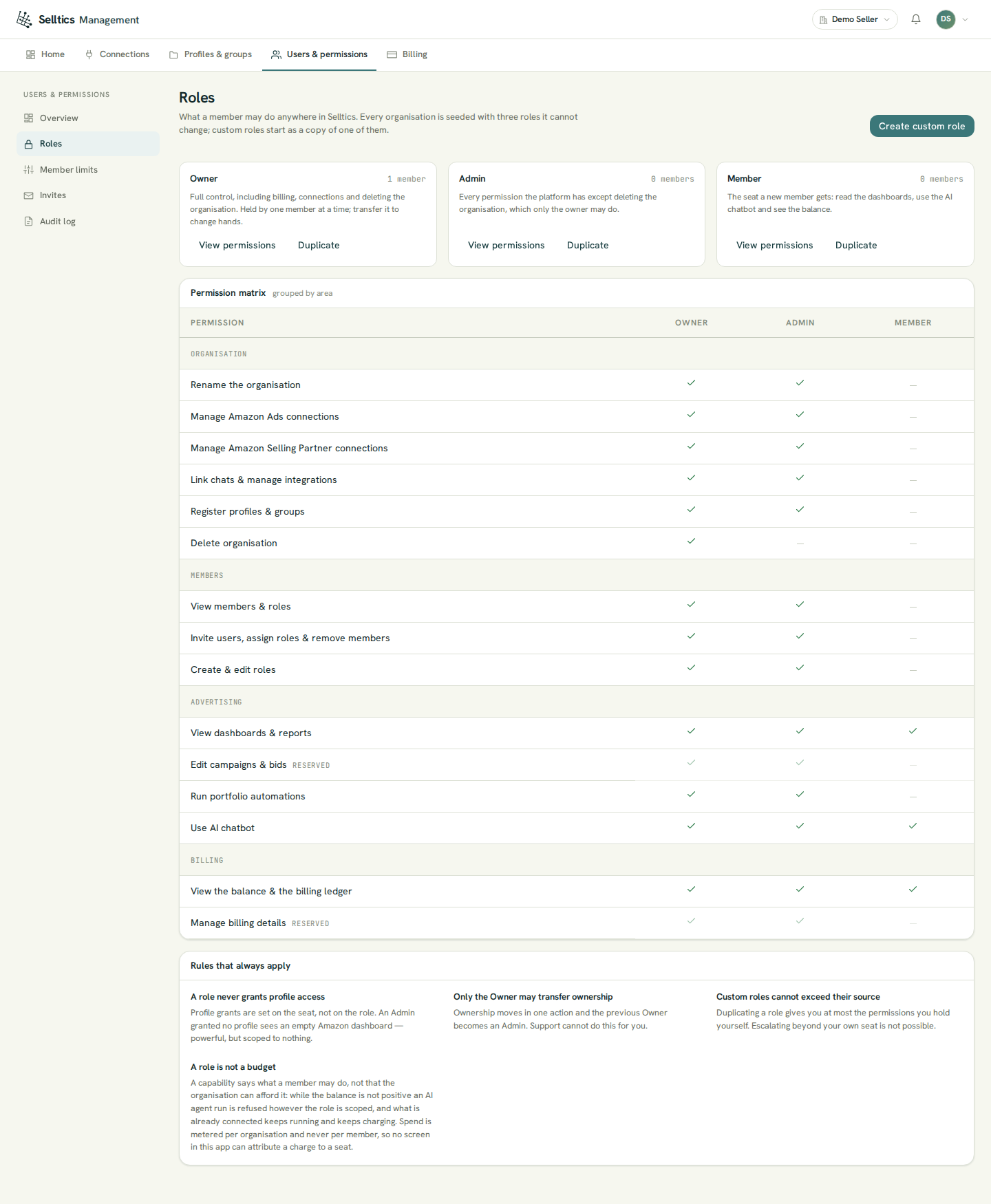
A role decides what a member may do; it never decides which profiles they see — that is set on the member. Every organization has three roles that cannot be edited or deleted:
- Owner — everything, including deleting the organization. One member at a time.
- Admin — every permission except deleting the organization.
- Member — view dashboards & reports, use the AI chatbot, view the balance & the billing ledger.
Custom roles
With Create & edit roles you can:
- create custom roles, or start one as a Duplicate of another;
- change a custom role's permissions (the list you save replaces the old one);
- delete it.
A role still held by a member or named in a pending invitation cannot be deleted.
Reserved permissions
Two permissions are marked Reserved — Edit campaigns & bids and Manage billing details: they can be granted, but nothing checks them yet, so granting them changes nothing.
Invitations
Users & permissions → Invites lists every invitation with the role and profile access it carries:
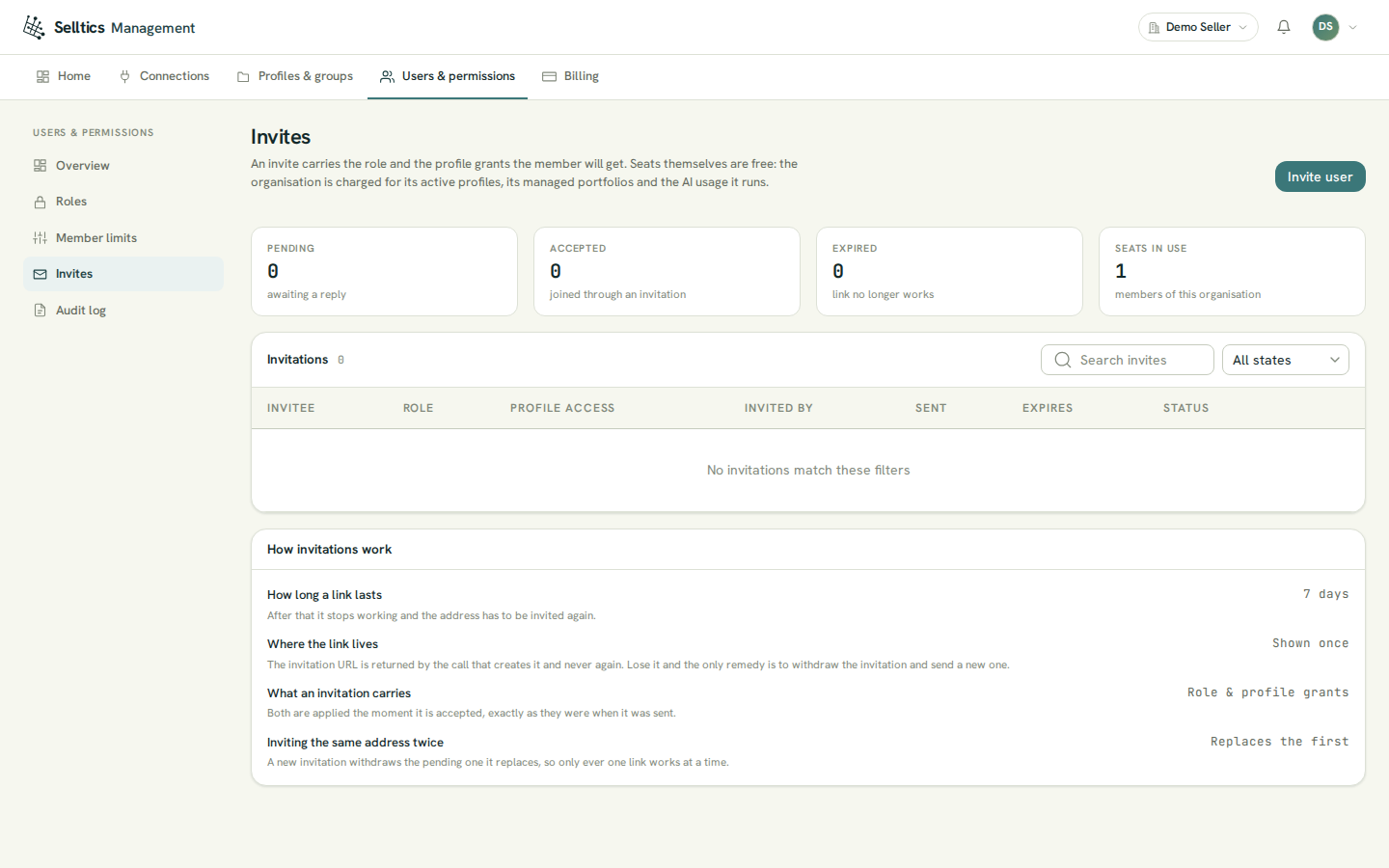
The demo organization in this screenshot is a personal one: the Invite user button is enabled because it is on Company, but the server would refuse the invitation (see the conditions below).
Sending an invitation
- Invite user creates the invitation and shows its link once, in the dialog.
- A link works for 7 days. Inviting the same address again replaces the pending invitation.
- The role and the profile access are applied exactly as they were when the invitation was sent.
- Only a pending invitation can be revoked.
Copy the link
Copy the link when the dialog shows it: it is never shown again, and the only remedy for a lost link is to revoke and invite again.
Who can invite
Two conditions apply to inviting, and both are checked by the server:
- the organization must be on the Company plan — below it, the button is shown disabled with the reason;
- the organization must be a team organization — a personal organization refuses every invitation, even on Company.
So the path to a shared account is:
- create a team organization;
- top it up to at least $29;
- move it to Company (see Billing);
- invite.
Seats themselves cost nothing.
Accepting an invitation
The person invited opens the link on the Selltics SSO site:
- signed in with the invited address, they press Accept invitation;
- signed in with another address, accepting is disabled until they log out;
- not signed in, they register or log in with the invited address, which is filled in and cannot be changed.
Member limits
Users & permissions → Member limits is a preview of a feature that does not exist yet: the figures on it are examples, its controls are disabled, and a banner says so.
Spending is per organization
No limit is enforced per member. Spending is per organization: when the balance runs out, the limits apply to everyone in it alike (see Billing).
Audit log
Users & permissions → Audit log records the administrative acts on the organization, with who did it, to what, when and, where known, from which IP address. It is read-only. It records:
- access changes such as roles, members, invitations and organization updates;
- billing events such as top-ups.
On the screen:
- it loads 20 events at a time and states how long events are kept;
- it filters by area (Access, Billing) and by person;
- acts done by the platform read System;
- the search box searches only the events already loaded.
What happened to connections is in a separate log, linked from the screen (see Connections).